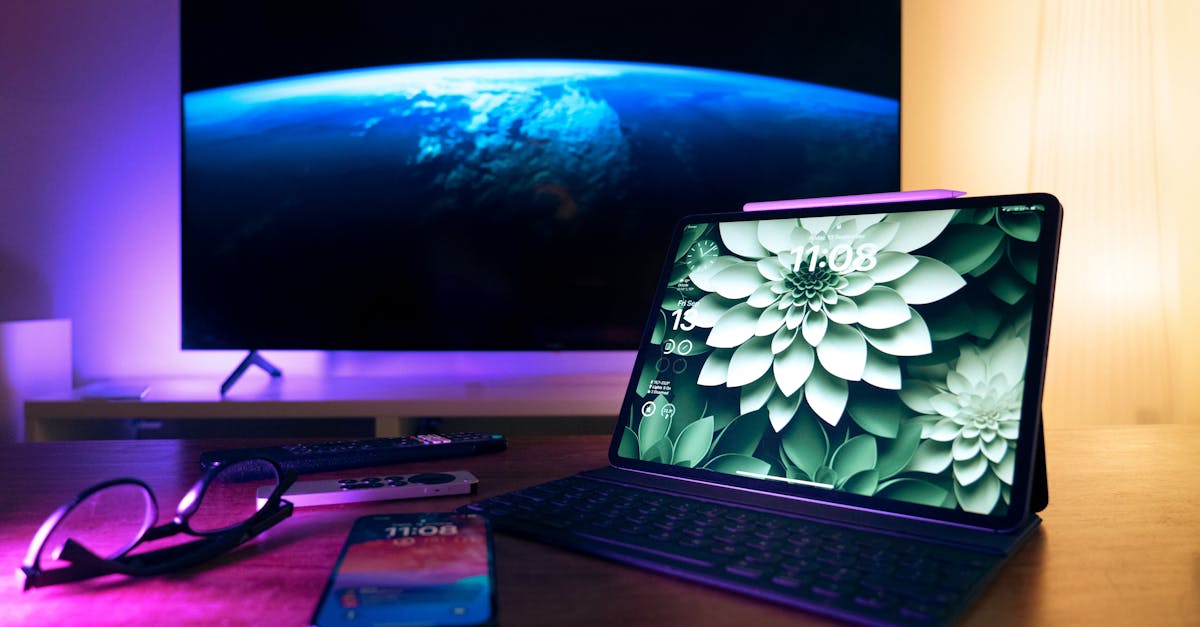
In a world where binge-watching is practically an Olympic sport, wouldn’t it be great if you could share your iPhone’s dazzling display with the big screen? Imagine scrolling through cat videos or catching up on your favorite series without squinting at that tiny screen. It’s time to elevate your viewing game and turn your living room into a mini theater!
Table of Contents
ToggleUnderstanding Casting
Casting refers to the wireless transmission of media content from an iPhone to a smart TV. This method allows users to enjoy videos and shows on a larger screen, enhancing the viewing experience. Many prefer this technology for its simplicity and convenience, eliminating the need for complex cables.
Two primary technologies enable casting: AirPlay and Google Cast. AirPlay offers seamless integration for Apple devices, allowing users to stream videos, music, and photos directly from their iPhones. Google Cast works with various applications and supports various devices, including Android smartphones and tablets.
Users must ensure both the iPhone and the smart TV connect to the same Wi-Fi network for efficient casting. Once connected, accessing the casting option typically involves selecting the desired content within an app and tapping the Cast icon. This feature appears as a small rectangle with a Wi-Fi signal in one corner.
Compatibility is essential for a successful casting experience. Most modern smart TVs support AirPlay or Google Cast. However, confirming compatibility before initiating the casting process saves potential frustration.
Some common apps that support casting include YouTube, Netflix, and Spotify. These apps integrate casting features directly, allowing for quick and easy sharing of content between devices. With just a few taps, users can transform any environment into a mini theater.
Privacy considerations should not be overlooked. Casting may share screen content with anyone in the vicinity of the smart TV. Turning off the casting feature when not in use prevents unauthorized access to sensitive information.
Understanding casting streamlines the process of enjoying media on a bigger screen and enhances the overall entertainment experience.
Requirements for Casting
Casting from an iPhone to a smart TV requires specific devices and a solid network connection.
Compatible Devices
iPhones running iOS 12 or later support seamless casting. Smart TVs from brands like Apple, Samsung, LG, and Sony often come with built-in AirPlay or Google Cast features. Apple TV also provides a reliable casting option. Additionally, streaming devices such as Chromecast, Roku, and Amazon Fire Stick enhance compatibility when used with a smart TV. Users need to ensure their devices support these technologies for an optimal experience.
Network Connection
A robust Wi-Fi network forms the backbone of successful casting. Both the iPhone and smart TV must connect to the same Wi-Fi network to allow communication. Network speeds of at least 5 Mbps improve streaming quality. Using a dual-band router can minimize interference, optimizing performance. Rebooting the router can also solve connectivity issues. Strong and stable connections prevent lag during playback, ensuring smooth viewing sessions.
Step-by-Step Guide on How to Cast from iPhone to Smart TV
Casting content from an iPhone to a smart TV enhances viewing experiences significantly. Here’s how to utilize two popular methods effectively.
Using AirPlay
AirPlay allows seamless sharing of content between an iPhone and a compatible smart TV. First, ensure both devices connect to the same Wi-Fi network. Then, open the app containing the media you want to cast. Tap the AirPlay icon, usually represented by a triangle and a rectangle. Select your smart TV from the list of available devices. After connecting, the video or audio appears on the larger screen instantly. Remember to adjust the volume on your TV for optimal sound. This method works best for Apple devices, compatible televisions, and offers reliable performance.
Using Third-Party Apps
Various third-party apps facilitate casting from an iPhone to different smart TVs. Popular apps include Google Home, Allcast, and iMediaShare. Start by downloading your chosen app from the App Store and launching it. Ensure both the iPhone and the smart TV connect to the same Wi-Fi network. The app usually detects the TV automatically. Select the content you wish to cast, then follow prompts within the app to connect to the TV. The casting process may slightly differ among apps, so following specific on-screen instructions is crucial. These apps expand compatibility and enhance the multifunctionality of your smart TV.
Troubleshooting Common Issues
Casting from an iPhone to a smart TV may encounter common issues, but solutions exist to enhance the streaming experience.
Connection Problems
Connection problems often arise during casting. Ensure the iPhone and smart TV connect to the same Wi-Fi network. Restarting both devices can resolve temporary glitches. Users can also check for software updates on their iPhone and smart TV, which might fix compatibility issues. Resetting the router may help if connectivity persists. Users should ensure that Wi-Fi is enabled on their iPhone and the smart TV. Certain smart TVs might require specific settings for casting, so referring to the user manual can provide additional guidance. Finally, if using a third-party casting app, users must confirm that the app is up to date.
Quality Issues
Quality issues may detract from the viewing experience. Users should confirm their internet connection meets the recommended speeds, ideally at least 5 Mbps for smooth streaming. Low bandwidth can cause buffering or degraded video quality. Reducing the number of devices connected to the Wi-Fi network may improve performance. Checking the resolution settings in the casting app can also address quality concerns. In some cases, the video source might impact quality; selecting a different video or streaming from another app can make a difference. If quality issues persist, restarting the streaming device or smart TV can refresh the connection.
Casting from an iPhone to a smart TV opens up a world of entertainment possibilities. With just a few simple steps users can elevate their viewing experience and enjoy content on a larger screen. Whether using AirPlay or third-party apps it’s easy to share videos and music seamlessly.
By ensuring both devices are connected to the same Wi-Fi network and following the outlined methods users can quickly overcome any hurdles. Troubleshooting tips further enhance the experience making it accessible for everyone. Embracing this technology not only transforms how content is consumed but also brings friends and family together for a more immersive viewing experience.